⚙ Automate Linux with Shell Scripting 🐧👨💻
Basic to Advance for DevOps Engineer or Developer

👉 Quick Intro 🔥
Shell is the intermediate or medium of communication between applications/users and Hardware
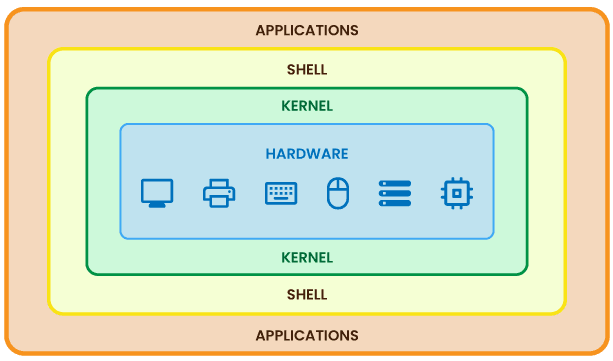
To automate Linux commands, along with some condition-based or repetitive tasks, requires writing a few lines of code, which is termed as Shell Scripting
👉 Types of shell ⚙
| Type | Year |
| Bourne shell (sh) | 1977 |
| C shell (csh) | 1970 |
| KornShell (ksh) | 1980 |
| Bourne Again Shell (bash) | 1989 |
| Z shell (zsh) | 1990 |
Most preferred is bash in Linux and zsh in mac
You can see your shell type using
$0

👉 How to create shell script ❓
Create a file with any name but the extension should be
.shOpen the file and write the below code in it
  #!/bin/bash

  echo "Hello World"
First line that you see is called the shebang line, It's like set of instructions that computer reads at beginning of script to know which interpreter should be used to execute script
To print anything on the terminal the
echocommand is usedAfter saving the file, you need to give execute permission to file to execute it
Now you can execute the script by
./filename.sh
👉 Variables
It is like an object that can store different types of data like, integer, float, string, and boolean
To declare the variable see the below code
var=valueOR
declare var=valueOR
declare -i var=value-i for integer variable
To display variables there are two syntax
echo $variableecho ${variable}#!/bin/bash # string name="John" # integer age=27 # float height=5.3 # boolean isEligible=true # you can display value of variables by two ways echo "$name" echo "$age" echo "${height}" echo "${isEligible}"
Few rules to declare a variable & their names 📍
No space around
=Variable name must start with a letter or underscore
Number can be used anywhere else but not at the start
DO NOT USE special characters like @, #, %

- Case sensitive

Input 🧑💻
To take input from the user we use
read#!/bin/bash echo "Enter name" read name echo "Your name = ${name}"In the above code, first it will print "Enter name" on a terminal and then will wait for the user to enter a name, after entering the name press "Enter", On the next line "Your name = xyz" will be present
You can take all types of data as an input

You can combine display message for input and taking input into single line as below
  #!/bin/bash

  read -p "Enter name = " name
  echo "Your name = ${name}"
Output 🖥️
To display anything on the terminal we have two command
echoandprintfechowe have already seen itLet's see
printfprintf <output-with-format> <variable>#!/bin/bash name="John" age=27 height=5.321 printf "Name = %s\n" "$name" printf "Age = %d\n" "$age" printf "Height = %f\n" "$height"
\nis for a new lineBy default decimal number will print 6 digits after the dot, to limit it you can use the below types

  #!/bin/bash

  pi=3.14159
  printf "%10.2f\n" "$pi"
👉 Comments
Code comments are like little notes that programmers write in their code to explain what it does. It helps them and other people understand the code better.
It is ignored by the Interpreter.


👉 Constants
Constants are variables whose value can not be changed once declared
readonly var=valueOR
declare -r var=value#!/bin/bash readonly name="John" echo "Your name = ${name}" # below line will give error as name is readonly name="Paul" echo "Your name = ${name}"
👉 Command Line Arguments
CLA are one type of variables which we pass to the script while executing it
./file.sh var1 var2 var3 ...We can pass
nnumber of CLATo use these variables in script we can use the below notations

  #!/bin/bash

  echo "File name = $0"
  echo "First argument = $1"
  echo "Second argument = $2"
  echo "Third argument = ${3}"
  echo "All arguments = $*"
  echo "All arguments = $@"
  echo "Count of arguments = $#"
echo "Count of arguments = $#"
shiftis used to remove the first few CLA#!/bin/bash # remove first CLA shift 1 echo "$*" # remove starting 3 CLA shift 3 echo "$*"
👉 Array
An array is a set of variables
Can contain different types of data
It has different syntax for different operations
  #!/bin/bash

  # array contains four types of data
  arr=(91 "john" true 3.14)

  # display all array items
  echo "Array = ${arr[*]}"
  echo "Array = ${arr[@]}"
Array Operations ⚙
Indexing starts from 0

Element at index, all elements, array length, slicing

  #!/bin/bash

  arr=(91 "john" true 3.14)

  echo "Element at index 2 = ${arr[2]}"
  echo "Array elements = ${arr[*]}"
  echo "Array elements = ${arr[@]}"
  echo "Length of array = ${#arr[*]}"
  echo "Length of array = ${#arr[@]}"
  echo "2 elements from 1 = ${arr[@]:1:2}"
Add elements to an array, Remove elements, or Delete array

  #!/bin/bash

  arr=(91 "john" true 3.14)
  echo "Array = ${arr[*]}"

  # add 4 and Hi at end of array
  arr+=(4 "Hi")
  echo "Array = ${arr[*]}"

  unset arr[2]
  echo "Removed element at 2 = ${arr[*]}"

  unset arr
  echo "Remove all elements = ${arr[*]}"
Copy one array to another, concatenate two arrays
  #!/bin/bash

  arr=(91 "john" true 3.14)

  # * or @ both will work
  new_arr=(${arr[*]})
  echo "New Array = ${new_arr[*]}"

  concatenated_arr=(${arr[@]} ${new_arr[@]})
  echo "Concatenated Array = ${concatenated_arr[*]}"
👉 Arithmetic Operators ±

To evaluate arithmetic operations there are three ways
$((...))$[...]let result=...#!/bin/bash a=2 b=4 echo "Addition = $(( $a + $b ))" echo "Division = $[ $a / $b ]" let c=$a**$b echo "Exponent = $c"
You can see for division only 0 is printed not the entire decimal number
To work with decimal numbers we need an external calculator i.e
bcbccan be used for all calculations not only decimals#!/bin/bash echo "3.8 + 4.2" | bc bc <<< "1.5 * 3.3" echo "scale=3; 2/5" | bc bc <<< "scale=3; 4/2"

To increment/decrement integer numbers you can use the below ways
let c+=1let c++let c-=1let c--
👉 String Operations & Operators
Suppose you have a string variable named str
String has six main operations

  #!/bin/bash

  message="Hello John, Good Morning"

  echo "Length = ${#message}"
  echo "UPPERCASE = ${message^^}"
  echo "lowercase = ${message,,}"
  echo "Name = ${message:6:4}"
  echo "Replace John with Paul = ${message/John/Paul}"
  echo "Replace o with O = ${message//o/O}"

String has four main operators
These operators will be used with if to check the conditions
===> Check if two strings are equal!==> Check if two strings are not equal-z=> Check if a string is zero length or null-n=> Check if a string is non-zero length
👉 Integer Operators 🔢
These operators will be used with
ifto check conditions-eq=> Equal-ne=> Not Equal-gt=> Greater than-lt=> Less than-ge=> Greater than or equal to-le=> Less than or equal to
👉 File Operators 🗃
These operators will be used with
ifto check the conditions-e=> Tests if the file exists.-f=> Tests if the file is a regular file (not a directory or a device file).-d=> Tests if the file is a directory.-s=> Tests if the file is not zero size (i.e., it has some content).-r=> Tests if the file has read permission.-w=> Tests if the file has write permission.-x=> Tests if the file has execute permission.
👉 If Else ⤳
- There are three variants of if else
If
Code inside "if" is executed if the condition is true otherwise it is skipped
  #!/bin/bash
  name1="John"
  name2="John"

  if [[ $name1 == $name2 ]]
  then
        echo "Both names are equal"
  fi

  # -z is used to check if string is empty or null
  # below code will be skipped because name is not empty
  if [[ -z $name1 ]]
  then
      echo "name is empty"
  fi

If else
code inside "if" is executed if the condition is true otherwise code inside "else" is executed
  #!/bin/bash

  file_path="/home/ubuntu/demo.txt"

  # check if file exists
  if [[ -e "$file_path" ]]
  then
      echo "File exists."
  else
      echo "File does not exist."
  fi

  # check if file is directory
  if [[ -d "$file_path" ]]
  then
      echo "Directory exists."
  else
      echo "Directory does not exist."
  fi

  # check if file has write permission
  if [[ -w "$file_path" ]]
  then
      echo "File has write permission."
  else
      echo "File does not have write permission."
  fi
If elif else
it has multiple conditions with code for each condition
  #!/bin/bash

  num1=10
  num2=20

  # print largest number
  if [[ $num1 -gt $num2 ]]
  then
      echo "$num1 is greater"
  elif [[ $num1 -lt $num2 ]]
  then
      echo "$num2 is greater"
  elif [[ $num1 -eq $num2 ]]
  then
      echo "Both are equal"
  fi
👉 Loops ↻
A loop is a block of code that keeps on executing until the provided condition becomes false.
There are main three types of loops, For, While and Until
For
There are three parts in for loop
Initialization - Initialize variable value with some data
Condition - Run for loop until the condition is true
Updation - Increase or decrease the value of an initialized variable
    for (( Initialization ; Condition ; Updation ))
    do
        ...
    done
    #!/bin/bash

    # print 1 to 10
    for(( i=1 ; i<=10 ; i++ ))
    do
        echo $i
    done

To run for loop infinite times don't give condition
  #!/bin/bash

  # print 1 to infinity till system breaks
  for(( i=1 ; ; i++ ))
  do
      echo $i
  done
For in
This type of for loop is used to iterate over lists or arrays
  #!/bin/bash

  # list
  for i in "John" "Paul" 123
  do
      echo $i
  done

  # array
  arr=(91 "john" true 3.14)

  for i in ${arr[*]}
  do
      echo $i
  done
While
while loop will keep on executing till the condition become false
  Initialization
  while [[ condition ]]
  do
      ...
      Updation
  done
#!/bin/bash i=1 while [[ $i -le 10 ]] do echo $i let i++ done

To execute while loop infinite times instead of condition give
true#!/bin/bash i=1 while [[ true ]] do echo $i let i++ done
Until
Until loop works exact opposite of the while loop
It will keep on executing till the condition becomes true
Everything else is the same as while loop
For infinite until loop we give
falseinstead of condition
👉 Break and Continue 💔
If you want to stop the loop if some particular condition or state is reached then
breakis used#!/bin/bash arr=(91 "john" true 3.14) # break loop after printing john for i in ${arr[*]} do echo $i if [[ $i == "john" ]] then break fi done

If you want to skip a particular iteration of the loop
continueis used#!/bin/bash arr=(91 "john" true 3.14) # break loop after printing john for i in ${arr[*]} do if [[ $i == "john" ]] then continue fi echo $i done
👉 Case ┋
If we have multiple elif conditions then case is most suitable to use
  case expression in
    pattern1)
      # commands to execute if expression matches pattern1
      ;;
    pattern2)
      # commands to execute if expression matches pattern2
      ;;
    pattern3)
      # commands to execute if expression matches pattern3
      ;;
    *)
      # default case if nothing matches
      ;;
  esac
expression is the variable you want to test against multiple patterns, expression variable can be of any type
pattern1),pattern2), etc.: These are the patterns you want to match against the expression. Each pattern should end with a closing parenthesis.;;=> This is used to terminate each pattern block. If a pattern matches, the commands for that pattern are executed, and then thecasestatement exits. The;;serves as a break.*)=> This is a default case if no pattern matches.#!/bin/bash read -p "Enter extension: " extension case "$extension" in "txt") echo "Text file." ;; "jpg" | "jpeg" | "png") echo "Image file." ;; "sh") echo "Shell script." ;; *) echo "Unknown file type." ;; esac
👉 Function ⚙
functions are small codes, which can be called with a single function name n numbers of times as per requirement
  # preferred way
  function functionName() {
      ...
  }

  OR

  function functionName {
      ...
  }

  OR

  functionName() {
      ...
  }
To pass arguments to function see below code
  #!/bin/bash

  # pass arguments to function
  function functionName() {
      echo "Name = $1"
      echo "Age = $2"
  }

  functionName "John" 22
All Command Line Arguments can't be used in functions unless we pass them as parameter
To use functions from different scripts,
sourcecan be usedAt the top of a file do
source ~/anotherFile.sh

- To declare local variable in function see below code
#!/bin/bash

function functionName() {
    # this variable is only accessible in function
    local name="Paul"
    echo $name
    echo "Name = $1"
    echo "Age = $2"
}

functionName "John" 22

👉 Logger 🚩
To log anything from bash you can use
logger#!/bin/bash logger "This is log"You can find this log at the bottom of
/var/logs/syslog
👉 Conclusion ✅
This much is more than enough for DevOps
Happy Learning !!! 👋


